
I Rooted My Robot Vacuum, Then Gave It a Voice
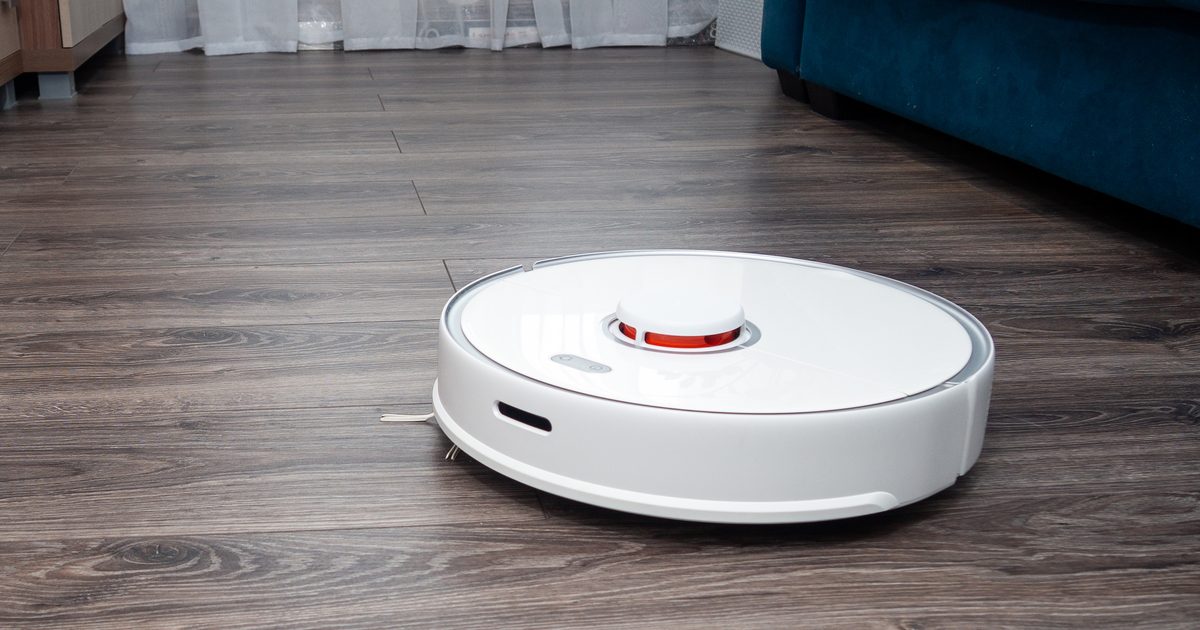
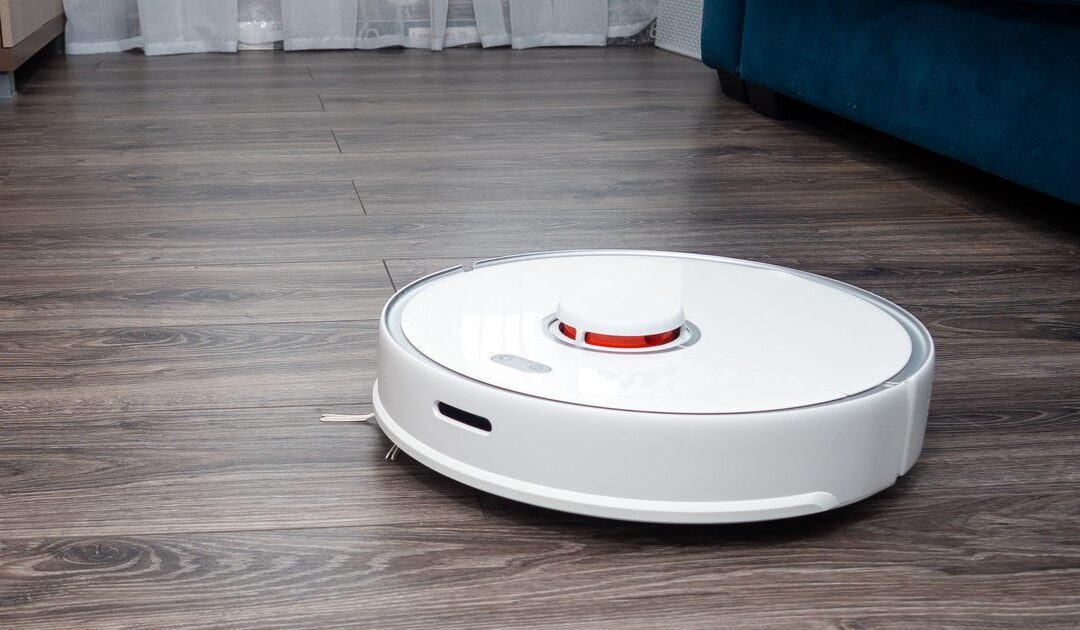
The most connected device in my house wasn’t my laptop or my phone. It was my robot vacuum. It has a camera, a microphone and a speaker, it maps every room, and it drives itself around my home all day.
So I did what any IT person eventually does with a device like that: I took control of it. I cut it off from the manufacturer’s cloud, brought it under my own home automation system, and then went a step further. Today, it answers to my own AI assistant. I can talk to it, it talks back, and it even plays music.
Here’s how that happened, what went wrong along the way, and what it has to do with how your business thinks about smart devices.
Why Bother? A Camera and a Microphone on Wheels
I own a high-end robot vacuum. It’s a great machine. Out of the box, though, it works like most smart devices: everything runs through the manufacturer’s app and cloud servers.
That means a device with a camera, a microphone and a speaker is roaming my house and checking in with servers I don’t control. I had no specific complaint about the vendor. I just didn’t like not knowing where that data went.
My goal was simple: cut off the cloud, not the features. I still wanted to use the camera and the speaker myself. I just wanted to be the only one with the keys.
Step 1: Rooting the Vacuum
“Rooting” means getting full administrator access to a device, the same kind of access the manufacturer has. Under the hood, most robot vacuums are small Linux computers. Rooting lets you log into that computer and decide what runs on it.
For this model, I used a community project called Dustbuilder. It builds a custom firmware image for your specific robot. The process looks roughly like this:
- Pop off the robot’s top cover (no screws needed) and plug a small adapter board into the connector underneath.
- Put the board into a low-level recovery mode (called FEL) and connect the adapter to a computer over USB.
- Flash the custom firmware, which keeps the robot’s normal functions but adds secure remote access (SSH).
- Reassemble, boot up, and confirm you can log in.
It was easier than it sounds. There were no screws to remove, just a cover that pops off, a small adapter board, and a USB cable. I had help from a Linux-savvy friend, and I switched computers partway through, which is its own story. But once it was done, the vacuum was mine.
Step 2: Swapping the Cloud for Valetudo and Home Assistant
With root access, I installed Valetudo, an open-source replacement for the manufacturer’s cloud. It runs right on the robot and gives you a local web page for maps, schedules and settings. Nothing leaves your network.
Then I connected it to Home Assistant, the open-source platform that runs the rest of my smart home. Valetudo talks to it over MQTT, a lightweight messaging system that lots of smart devices use.
The proof was in my firewall logs. After rooting, the vacuum showed zero bytes of internet traffic. It only talks to devices inside my house now, and it lives on its own isolated network segment for smart devices.
The unexpected bonus was room-by-room cleaning. I named each room on the map, then created a simple command for each one. “Clean the kitchen” now does exactly that. It’s far more useful than the robot’s physical start button ever was.
Step 3: Giving the Vacuum a Voice
I already run a personal AI assistant at home that handles lights, reminders and the rest of the house. Once I had root on the vacuum, I realized it had everything a smart speaker has: a speaker, a microphone, and Wi-Fi. So I made it one.
The robot only has about 100 MB of free memory, so it can’t do any heavy thinking itself. Instead, it acts as the ears and mouth, and my Home Assistant server does the work:
- I say the wake word, and the vacuum’s microphone picks it up.
- The audio streams to my home server, which turns my speech into text.
- The AI assistant figures out what I want and does it.
- The reply is turned back into speech.
- The answer plays through the vacuum’s speaker.
So “turn the office lights back on” works from the vacuum just like it would from any smart speaker.
From there it snowballed:
- Room cleaning by voice. “Clean the dining room” sends the robot to that room.
- It knows the map. The AI can see a live summary of the map, so it can answer “Where’s the robot?” or “Which room is biggest?”
- Music. The vacuum is now a speaker in my music system. Voice replies still mix in on top of whatever is playing.
- A matching voice. A community voice pack lets the robot’s own status announcements use the same voice as my assistant.
What Broke Along the Way
No project like this goes smoothly. A few of the problems were worth the price of admission:
| Problem | What Was Going On | The Fix |
|---|---|---|
| Music played, but made no sound | A hidden “digital volume” setting on the robot was sitting at 0% | Turn that one setting up |
| Music came out as static | Error messages were being mixed into the audio stream | Keep errors and audio in separate channels |
| The AI turned on the wrong “vacuum” | My CNC shop vac is also called a vacuum in Home Assistant | Give each device a clear, unique name |
| Voice commands got cut off | The robot stopped listening too early after its “I’m listening” chime | Add a chime and relax the end-of-speech timing |
| Speaker sounded distorted | Volume was pushed too high | Settled at about two-thirds volume |
My favorite is the shop vac. Before I renamed things, my AI assistant once fired up the dust collector on my CNC machine when I meant the robot. That’s a good reminder that naming matters, whether you’re organizing a smart home or a company file share.
What This Means for Your Business
You probably aren’t going to root the vacuum in your break room. But the same questions apply to every smart device in your office: TVs, cameras, thermostats, printers, doorbells and conference room gear.
- Know what’s talking to the internet. Many devices quietly check in with vendor servers. Your firewall can show you exactly what each one is doing.
- Put smart devices on their own network. My vacuum lives on a separate network segment from my computers. If one device is compromised, it can’t reach the rest of your systems.
- Prefer local control where it exists. Devices that work without a cloud account keep your data in the building and keep working if the vendor’s service goes down.
- Name things clearly. Confusing names cause mistakes, for people and for AI assistants.
If you’re not sure what’s on your network or who it’s talking to, that’s exactly the kind of thing we help with.
Should You Try This at Home?
If you like tinkering, it’s a rewarding project. Go in with your eyes open, though:
- Rooting almost certainly voids your warranty.
- It involves opening the device, and a mistake can brick it.
- You lose some features. I gave up the manufacturer’s live camera view, at least for now.
- You become your own tech support. When something breaks, there’s no one to call.
For me, it was worth it. My vacuum no longer reports to anyone but me, it cleans the room I ask for, and every now and then it tells me the dining room is the largest room in the house. Not bad for a device that started out just picking up crumbs.